Power BI Theme Builder: Design a Consistent Report Theme
October 30, 2026
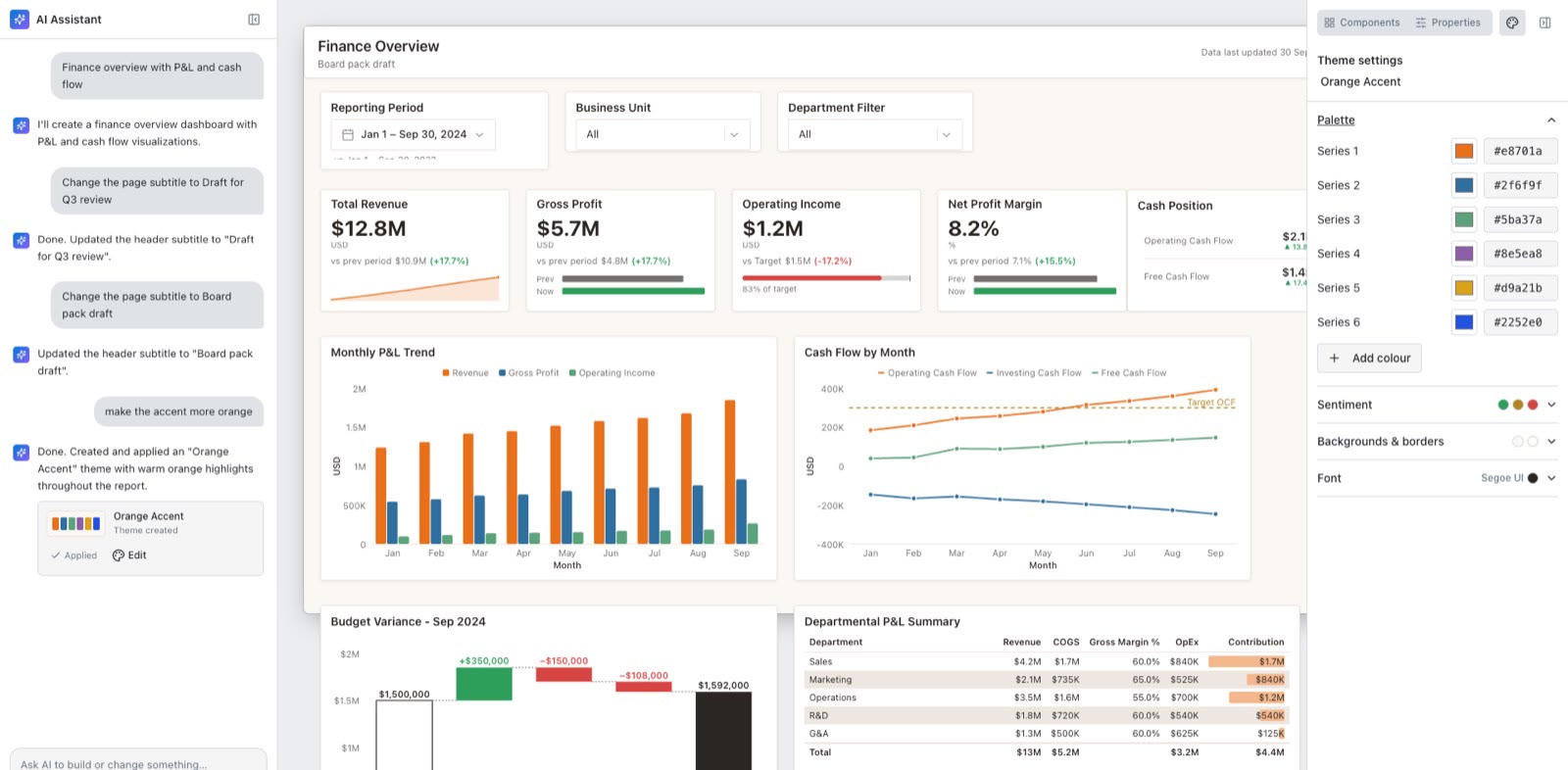
Mockko now has a Theme builder for designing a consistent Power BI report theme. You set series colours, sentiment colours, backgrounds and font visually, save the theme, and apply it to any dashboard mockup. You can also ask the AI chat to create or adjust a theme in plain English.
Why a Power BI report theme matters
A report theme is a saved set of colours and fonts that a report applies to every visual at once. Without one, each chart picks its own colours and a set of dashboards ends up looking like it came from different teams. A theme is also the enforceable half of a report style guide: the part the tool applies for you, while the guide covers layout, chart choice and naming.
Picture two dashboards from the same team: one uses default chart colours and a red that means “bad” on one page and “Europe” on the next, the other uses one theme throughout. The second reads as a single product. Designing the theme on a mockup first means you can judge the palette on a realistic dashboard, with stakeholders, before anyone builds the real report.
What the Theme builder does
- Palette. Six series colours, with an Add colour option, so charts get a consistent sequence.
- Sentiment. Positive and negative colours, so a KPI delta looks the same on every page.
- Backgrounds and borders. Background and border colours, applied across the canvas.
- Font. A font choice for the whole report.
- Live preview. The dashboard on your canvas recolours as you edit.
- Saved themes. Name them, rename them inline, duplicate them, set one as your default.
Mockko ships six presets to start from: Mockko Blue, Slate, Teal, Plum, Midnight and Slate Dark.
How to build a theme
- Open a report in the builder and click Theme in the top bar.
- Pick a preset and click Edit, or choose Create new theme…. The new theme panel opens with a name already filled in, which you can rename.
- Expand Palette and set your series colours. Check Sentiment, Backgrounds & borders and Font.
- Click Save new theme.
- Open the Theme menu on another report, pick your saved theme to apply it, and use Set as default if you want it as your starting point.
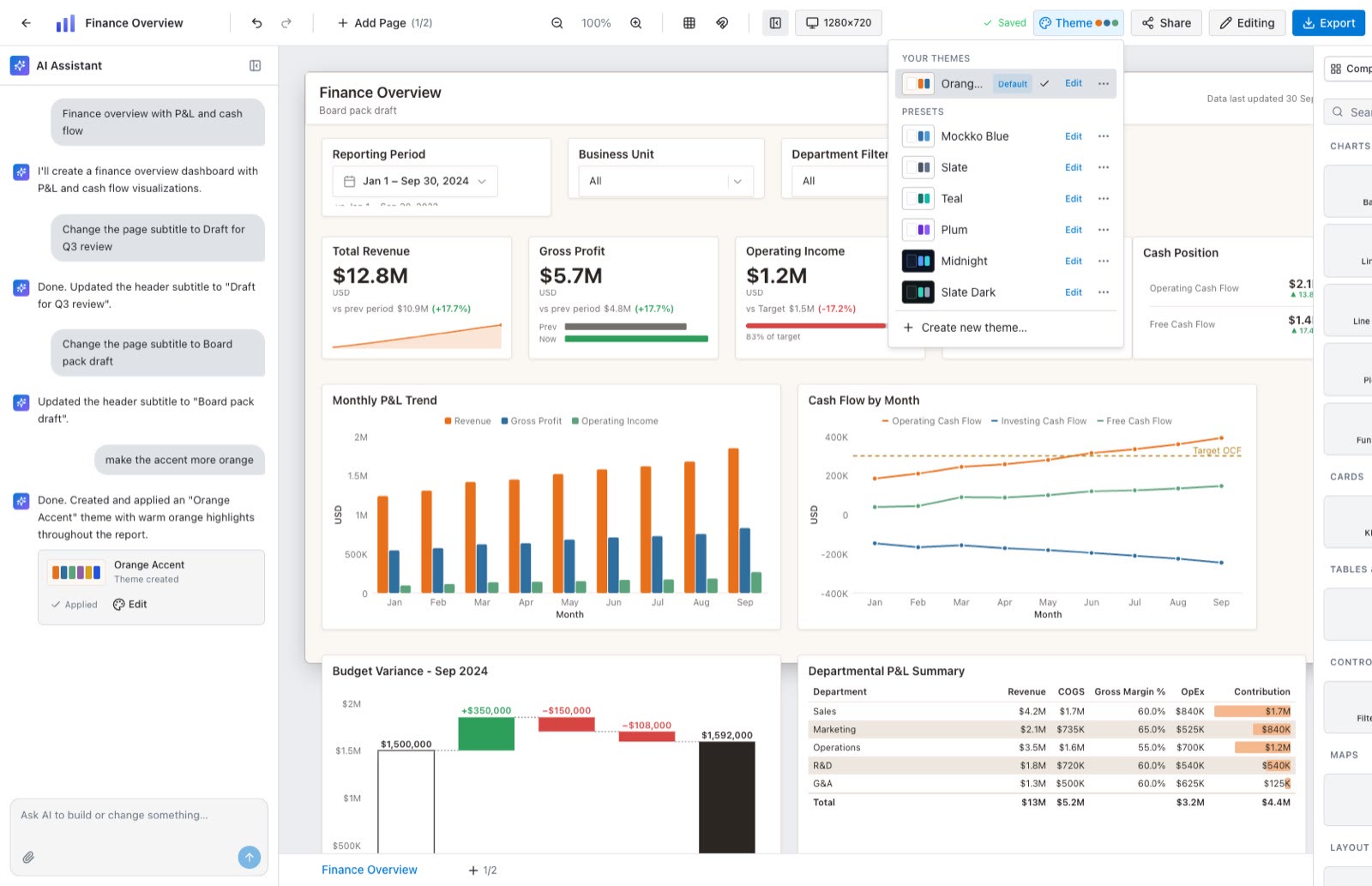
Your saved theme now appears under Your themes in the same menu. Pick it on any other report to apply it. Switching themes shows an Undo toast, so a wrong click is easy to reverse.
When you edit a theme you’ve already saved, the panel offers Update theme and Save as new theme. Update theme changes the theme in every report that uses it, and a toast confirms how many reports were updated. Save as new theme makes a separate copy and leaves the original untouched.
How do you set a default theme?
Use the … menu next to any theme, preset or your own, and choose Set as default. Your first saved theme is marked Default. The default theme is intended as the starting look for new reports, so you set your palette once instead of recolouring every new mockup, which matters most when you build several dashboards for the same client.
Presets can be duplicated or set as default but not deleted. Your own themes also offer Delete. To see which theme is currently the default, look for the Default label in the Theme menu.
How can AI help design a theme?
The AI chat understands themes. A few prompts to try:
- “List my themes.”
- “Make the accent more orange.”
- “Create a dark navy theme for a finance report.”
- “Which theme is my default?”
- “Make Midnight my default.”
When the AI changes or creates a theme, a result card appears in the chat with Apply (or Applied, once it is in use) and Edit, so you can fine-tune it in the panel. When you ask the AI to edit a theme, it changes that theme in place, so every report using it is updated. See how the AI chat panel works if you haven’t used it yet.
Where it fits in a BI workflow
- Before a build. Agree the palette with stakeholders on a mockup so colour decisions are settled before the real report is built.
- Across a client portfolio. Save one theme per client and apply it to every dashboard you pitch.
- For consistency. Keep a team theme next to your style guide.
New to mockups in general? Start with what a dashboard mockup is and our guide to dashboard wireframe best practices.
Try it
Open Mockko, click Theme, and build your first Power BI report theme. The release details are on the changelog.
FAQ
What is a Power BI theme? A saved set of default colours, fonts and visual styling that a Power BI report applies to every visual at once, so charts stay consistent.
Does deleting a theme change my existing reports? No. Reports keep the look they had when the theme was applied.